Installing a torrent client should be a routine software task, but the process can expose a computer to adware, browser extensions, trial utilities, modified search settings, and other programs the user never intended to install. In many cases, the problem does not come from the torrent protocol or even from the original client. It begins with a misleading download page, a repackaged installer, or an optional offer hidden inside the setup wizard.
Avoiding these problems requires more than clicking a familiar application name. The download source, publisher information, file integrity, installation mode, advertising policy, and post-installation changes all need to be considered. A few minutes of verification before opening the installer can prevent a much longer cleanup process later.
Obtain the Installer From a Verifiable Source
The safest starting point is the software developer’s official website or a trusted application store maintained by the operating system provider. Search results, advertisements, software directories, and third-party download portals should not be treated as equivalent sources.
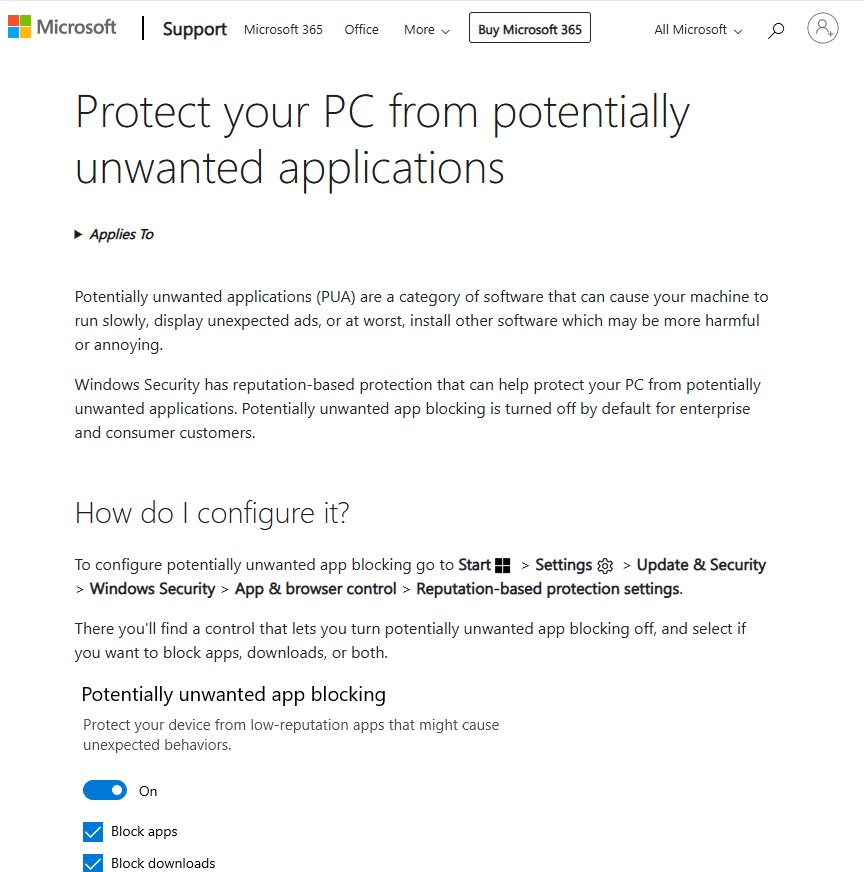
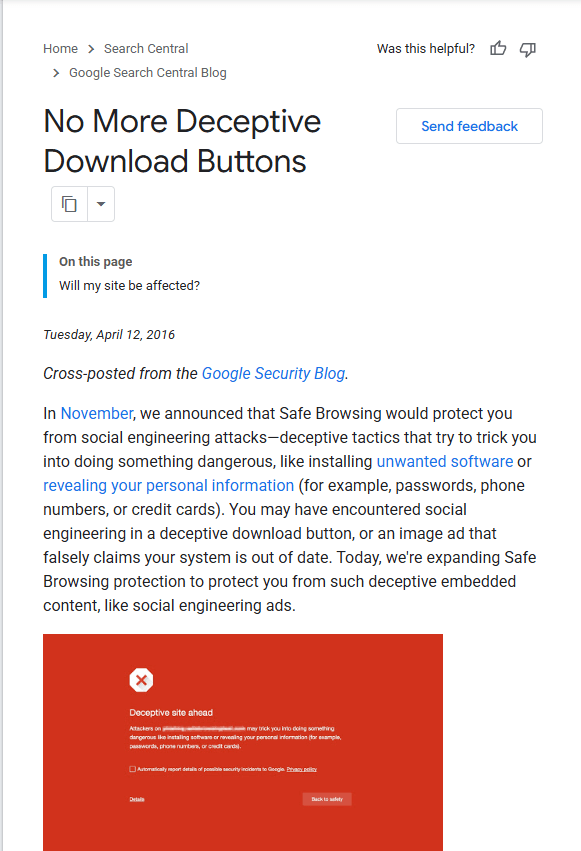
A third-party site may offer the correct application while placing it inside its own download manager. That wrapper can introduce additional offers, alter the installation sequence, collect information about the installation, or direct the user toward a different file. Even when the added programs are technically optional, the interface may make the decline option difficult to notice.
Confirm the domain before downloading anything. A page can copy the project logo, colors, screenshots, and product description while using a similar-looking domain name. Sponsored search results can also appear above the official result, so their position on the page does not prove authenticity.
The download page should clearly identify the operating system, installer type, supported version, release information, and publisher. Be cautious when a page contains several large download buttons, countdown timers, browser notification requests, or a requirement to install a separate download utility before receiving the program.
A trusted application store can reduce some of these risks because packages generally pass through a defined publishing and update process. However, the developer’s official documentation should still be consulted to confirm that the store listing is recognized by the project.
Confirm the Publisher, Signature, and File Integrity
Downloading from the correct page is important, but the file itself should also be examined before execution. The main checks are the publisher name, digital signature, filename, version, file size, and cryptographic hash when the developer publishes one.
On Windows, right-click the installer, select Properties, and look for a Digital Signatures tab. The signer should correspond to the developer or organization named on the official site. Microsoft describes Authenticode signatures as a way to verify the software publisher’s identity and detect whether signed code has changed since publication.
A valid signature does not guarantee that every feature in the program is desirable. It does, however, provide evidence that the signed file came from the named publisher and has not been altered after signing. An invalid signature, an unexpected publisher, or a warning that the signature cannot be verified is a reason to stop and investigate.
The absence of a digital signature does not automatically mean a file is malicious. Smaller open-source projects do not always sign every package. In that situation, the official release page, package repository, published hash, and project documentation become more important.
A hash can be used to confirm that the downloaded file matches the version published by the developer. Windows users can calculate a SHA-256 value in PowerShell with:
Get-FileHash “C:\Path\installer.exe” -Algorithm SHA256
Microsoft’s documentation explains that changing the contents of a file changes its hash value, while renaming the file does not. The calculated value should be compared character by character with the SHA-256 value on the official release page.
This comparison is useful only when the expected hash comes from a trusted source. A hash displayed beside a malicious download on the same untrusted page proves only that the file matches what that page intended to distribute.
Projects may also provide PGP signatures. These offer another method of verifying a release, but they require checking the signing key or fingerprint against information published through an official project channel. qBittorrent, for example, publishes checksums, PGP signatures, and its signing-key fingerprint on its official download page.
Read Every Installation Screen
A legitimate installer can still contain optional offers. Free software distributors sometimes receive revenue for presenting antivirus trials, browser tools, search services, backup utilities, or other partner products during setup.
These offers may be disclosed, but their presentation often favors acceptance. A checkbox may already be selected. A large button may approve the offer while a less visible text link declines it. The wording may describe an unrelated product as “recommended” or suggest that it is necessary for completing the installation.
Use the custom, advanced, or manual installation mode when it is available. Express or recommended installation usually applies a preset group of choices and may not show every optional component clearly.
Read each screen before pressing Next. Look for statements about changing the homepage, replacing the default search engine, adding a browser extension, enabling notifications, installing another security product, launching at startup, or sharing diagnostic and advertising data.
The position of a checkbox also matters. Some installers use a checked box to accept an offer, while others use a checked box to decline it. Read the full sentence instead of assuming that clearing every box is always correct.
Stop the installation when the wizard introduces an unrelated application without offering a clear way to refuse it. It is better to close the installer, delete the file, and locate a cleaner package than to continue and attempt to remove bundled software later.
Administrative permission prompts deserve the same attention. The publisher shown in the operating system prompt should match the publisher you expected. Do not approve a prompt merely because it appeared immediately after you opened the installer.
Advertising Policies Matter When Selecting a Client
The client itself should be evaluated separately from the installer. Some torrent applications display advertisements inside the interface or participate in affiliate distribution arrangements. Others are funded through donations, sponsorships, commercial editions, or community development.
Advertising does not automatically make an application unsafe, but it creates additional questions. Users should know whether advertisements appear only inside the program, whether the installer promotes partner software, whether usage data supports advertising, and whether paid upgrades are repeatedly presented.
Review the project’s official website, privacy information, release notes, and installation documentation. A clear project should make it possible to understand what is installed, how updates are delivered, whether advertisements are included, and which organization controls the distribution channel.
Open-source software can provide greater transparency because its source code and development activity are publicly available. qBittorrent is one example. Its official project site describes it as an open-source alternative and states that the client contains no advertisements.
That does not mean every file using the qBittorrent name is safe. An attacker can still copy the name and icon or distribute a modified installer through an unofficial website. The open-source status of the original project does not protect a user who downloads an unrelated repackaged file.
Likewise, proprietary software should not be rejected solely because its source code is unavailable. The practical comparison should focus on the official distribution method, update history, publisher identity, advertising policy, privacy terms, optional components, and the project’s response to reported security problems.
A suitable client is one whose installation and operating model can be understood before it is granted access to the computer and network.
Review the Computer Immediately After Installation
Once installation finishes, do not assume that the absence of an obvious warning means nothing changed. Review the computer while the installation is still fresh enough that new items are easy to identify.
Open the operating system’s installed-app list and sort it by installation date where possible. The torrent client should normally be the only new application unless you deliberately approved another component. Remove unfamiliar browser assistants, optimization utilities, search tools, trial security products, or download managers.
Review startup applications as well. A torrent client may legitimately offer to launch when the user signs in, but unrelated programs should not suddenly appear in the startup list. Disable anything unexpected before investigating it further.
Next, inspect every browser installed on the computer. Confirm that the homepage, default search provider, and new-tab behavior remain unchanged. Open the extensions or add-ons page and remove items that were not deliberately installed.
Browser notifications can create pop-ups that resemble adware even when no traditional application is present. Review the list of websites allowed to send notifications and revoke permission from unfamiliar domains.
The client’s own settings also require attention. Confirm the download folder, startup behavior, automatic update source, listening port, remote-control options, proxy settings, and upload limits. Torrent clients generally upload pieces of a file to other peers while downloading and may continue seeding after the download has completed.
Users who are unfamiliar with this behavior should review How to Manage Data Usage and Sharing Scope When Torrent Uploading Continues before leaving the program active. Uploading can affect bandwidth consumption, network performance, data limits, and the length of time a file remains available to other peers.
This review also helps identify a modified client. Unexpected proxy entries, unknown web interfaces, unfamiliar scheduled tasks, or an update address that does not belong to the official project may indicate that the installed package differs from the legitimate release.
Remove Unwanted Components Before They Become Persistent
When adware or an unwanted program has already been installed, begin by closing the torrent client and any unfamiliar applications. Uninstall suspicious programs through the operating system’s normal app-management interface instead of deleting random folders manually.
Review the installation dates and publishers before removing anything. A generic name such as “Search Assistant,” “Web Companion,” “System Tool,” or “Update Service” deserves investigation when it appeared at the same time as the torrent client.
After uninstalling the unwanted application, inspect browser extensions, search settings, startup items, notification permissions, scheduled tasks, and recently installed services. Some bundles consist of several components, so removing one visible application may not restore every modified setting.
Run a full scan with a reputable, updated security product. A second opinion from another trusted scanner may be useful when redirects, advertisements, or unknown processes continue. Do not install several real-time antivirus products simultaneously, since they can interfere with one another.
If the original torrent client came from an untrusted source, remove it as well. Keeping the main application while deleting only the obvious bundle does not address the possibility that the installer modified the client itself.
Download a fresh copy from the official source, verify its publisher or hash, and reinstall it using the custom setup mode. Recheck the system after the new installation rather than assuming the replacement is clean.
Persistent browser redirects, recurring tasks, unknown administrator accounts, disabled security settings, or repeated detections may require a more thorough system repair. Important personal files should be backed up, but suspicious executable files and installers should not be copied into the backup.

Torrent Technology and Copyright Use Are Separate Issues
A clean installer does not determine whether the files transferred through the client are lawful. BitTorrent is a peer-to-peer distribution method that can be used for legitimate purposes, including open-source operating system images, public-domain works, authorized datasets, software updates, and files shared directly by their rights holders.
The same technology can also be used to copy or distribute copyrighted material without permission. The U.S. Copyright Office states that downloading or distributing copyrighted works through peer-to-peer networks without authorization can create infringement liability. Rules and enforcement vary by jurisdiction, so users should confirm that the source has the right to distribute the material before downloading or seeding it.
Uploading is especially easy to overlook because seeding may happen automatically. A user can continue distributing pieces of a file after the visible download has finished. Closing the media file does not necessarily stop the torrent client.
Use torrent software only for content you created, content in the public domain, material released under a license that allows redistribution, or files offered through an official and authorized source. A familiar title, professional-looking website, or large number of seeders does not establish permission.
Safe torrent installation therefore has two parts. The software must come from a verified source and contain no unwanted components. The files transferred through it must also be authorized for download and sharing. Treating these as separate checks protects both the computer and the user from avoidable problems.