A stream that plays normally on one account may disappear, display a warning, or refuse to load on another. The difference does not always mean that the platform removed the content. Age information, supervision settings, device restrictions, content labels, regional verification rules, and network filters can all affect what a viewer is allowed to find or play.
The most effective response is to identify which layer is responsible before changing any settings. Repeatedly switching accounts, browsers, networks, and devices at the same time usually makes the cause harder to isolate.
Open the exact stream through the same direct link on both setups. Confirm that both tests use the same platform and, where possible, the same official player. Then change one element at a time. Switch accounts while keeping the device unchanged, test the same account on another device, and only then try another network.
This controlled process shows whether the restriction follows the account, the device, the application, or the connection.
Difference Between a True Age Gate and a Discovery Filter
The first step is to record exactly what happens. “Unavailable” can describe several different situations.
A stream may appear in search but refuse to play. It may vanish from recommendations while remaining accessible through a direct link. The platform may display a confirmation screen, blur a thumbnail, redirect the viewer to the official website, or show a message saying that the account is not eligible.
These outcomes point to different causes.
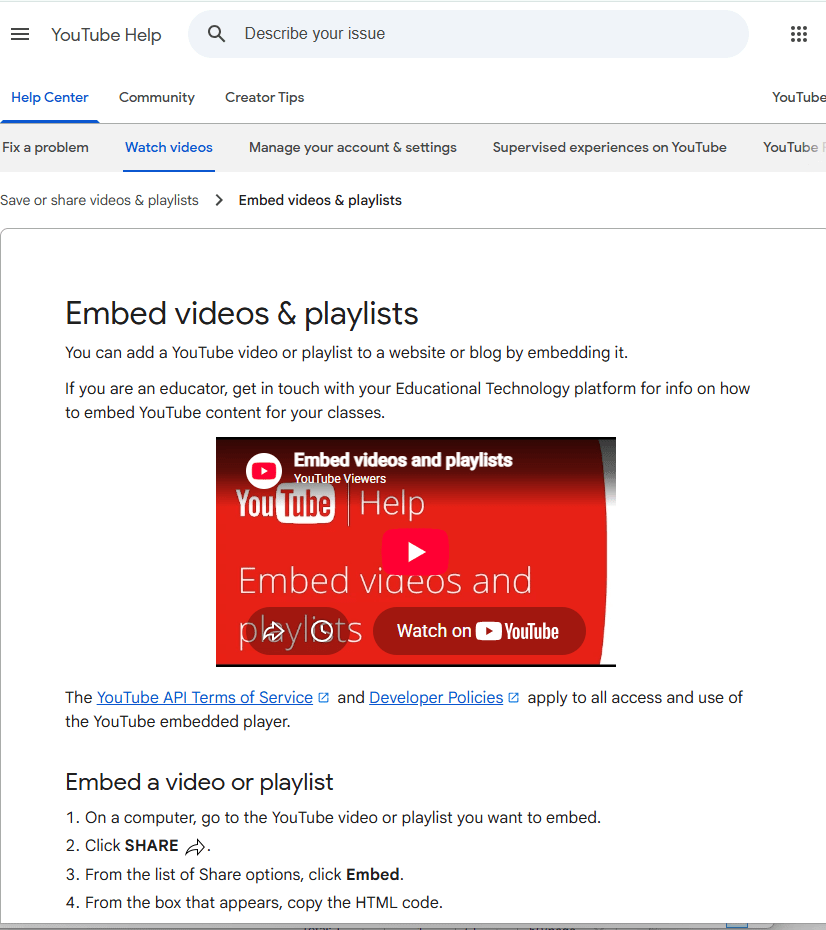
On YouTube, formally age-restricted videos cannot be watched by signed-out viewers or users under 18. They are also unavailable through most embedded players on third-party websites. A video that fails inside a forum, messaging application, or news page may therefore work after it is opened directly on YouTube and the viewer signs in with an eligible account.
Search visibility is a separate matter. A platform may reduce or remove mature content from recommendations and browsing areas without blocking every direct visit. This is why the direct stream URL is a better first test than a search result.
Open the same link in the official app or website. If it plays directly but not through an embedded player, the problem probably relates to the viewing method. If the direct page also refuses access, the account, device, content label, or network requires closer inspection.
Account Age, Login Status, and Viewer Access
Keep the same device, browser, application, and internet connection, then switch between the two accounts being compared.
If the result changes immediately, begin with the account’s recorded date of birth, login status, and age-verification state. An adult may still receive a restriction when the account contains an incorrect birth date, has not completed a required verification step, or is being treated as a supervised account.
YouTube states that age-restricted content is unavailable to viewers who are signed out or under 18. In some regions, adult viewers may also be asked to verify their age before watching such material.
Do not enter a false birth date, borrow another person’s identification, or create a second account to evade the restriction. These actions may breach platform rules and leave the underlying account problem unresolved. Use the service’s official correction or verification process instead.
Confirm that both people are signed in rather than relying on a saved browser page or application icon. Shared televisions and tablets often remain connected to a secondary Google account, child profile, guest session, or another household member’s subscription profile.
After an authorized account change, sign out and sign back in. Restarting the application may also be necessary because an existing session can continue using older eligibility information.
Difference Between Restricted Mode and Age Restrictions
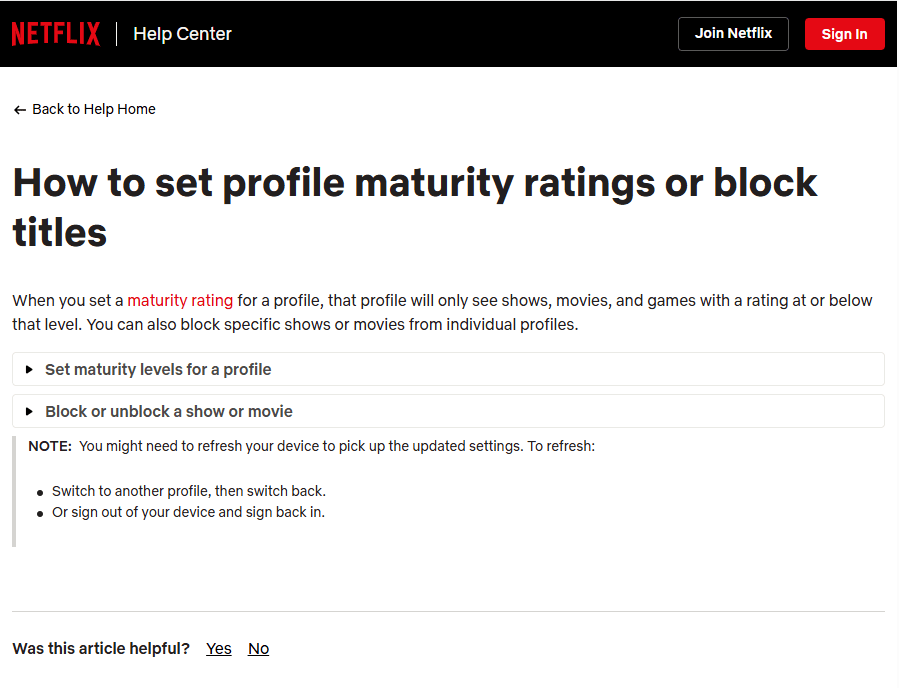
YouTube’s Restricted Mode and its formal age gate are separate systems. Restricted Mode is an optional filter intended to screen out potentially mature content, while an age restriction applies to individual videos identified as unsuitable for viewers under 18.
Turning off Restricted Mode does not make an underage account eligible for an age-restricted video. In the same way, being over 18 does not guarantee that every video will appear when Restricted Mode remains active.
Restricted Mode may be applied through the current browser, device, managed account, or network. On a shared computer, two browser profiles can therefore behave differently even when they appear to be using the same machine. A school, library, workplace, or other organization may also enforce the setting through its network administration.
Family Link introduces another control layer. A parent can manage YouTube restrictions for a supervised child or teen account. When Restricted Mode is enabled through Family Link, the supervised user may not be able to disable it independently on the devices where that account is signed in.
This explains why a personal adult account, a school account, and a family-managed account may produce three different results on the same phone.
Review the account type before looking for technical faults. Confirm whether it is personal, supervised, connected to an organization, or subject to a family group. If another person or administrator controls the restriction, request an authorized review rather than attempting to bypass it.
Device Controls That Override Platform Preferences
When the same account works on one device but fails on another, the account itself is less likely to be the only cause. The next step is to inspect the operating system and active device profile.
Apple’s Screen Time includes Content & Privacy Restrictions that can manage apps, web content, media, purchases, privacy options, and account changes on an iPhone or iPad. A platform’s own maturity setting may be permissive while Screen Time still blocks the application, website, or content category.
Google Family Link can manage a child’s applications, content access, Chrome browsing rules, account settings, and device screen time. Parents can also allow or block particular websites and restrict applications on supported Android devices and Chromebooks.
Third-party parental-control software, security suites, mobile-device-management profiles, and organization policies may add further restrictions. A phone used for work or school, for example, can contain controls that remain active even when the streaming application appears to use a personal account.
Confirm the active user profile and review authorized parental-control settings. Do not disable a Screen Time passcode, management profile, or family control without the device owner’s or administrator’s permission.
A useful test is to open the same direct stream through the official application and the official website on the affected device. If one works and the other does not, the difference may come from application permissions, browser restrictions, authentication support, or the version of the player.
Effects of Content Labels on Visibility and Warnings
The stream itself may carry a content classification that affects how different viewers encounter it.
Twitch replaced its former single Mature Content toggle with more specific Content Classification Labels. The labels cover mature-rated games, sexual themes, drugs or intoxication, violent and graphic depictions, significant profanity, and gambling. They can be added or removed during a live stream and can carry over to associated recordings.
These labels do not all mean that a stream has been removed. They provide information that Twitch can use when presenting warnings, filtering content, or applying viewer preferences. Twitch also provides controls that allow viewers to adjust how labeled categories are displayed.
Parental controls for teen Twitch accounts can affect whether certain labeled content is discoverable or recommended. Two accounts may therefore receive different search results or warnings even while visiting the same channel.
Look at the stream page rather than relying only on search. Note whether the channel is live, whether the content label recently changed, and whether the viewer is seeing a warning, a blurred preview, or complete denial of access.
Live streams can also change classification while they are in progress. A test performed earlier in the day may no longer represent the current label or content. Confirm that both viewers are opening the same live session or recording at approximately the same time.
This is also the point at which playback preferences may affect the experience. Viewers who follow fast-moving live discussions may benefit from reading Choosing Between Low-Latency and High-Quality Modes Based on How You Participate in Chat, but latency and picture-quality settings do not remove an account-level age gate. They should be adjusted only after access to the stream has been established.
Result Differences Caused by Regional Rules and Age Estimation
Age controls are not implemented identically in every country. Platforms may adapt verification methods to local laws, regulatory requirements, product availability, and the account’s location.
YouTube has stated that its age-estimation technology may use signals such as the types of videos an account searches for, the categories it watches, and how long the account has existed. When the system estimates that a user is under 18, age-appropriate protections may apply even if the birth date entered on the account suggests otherwise. An adult who has been classified incorrectly may be offered an official verification method, such as a credit card or government identification.
This means that two accounts containing the same birth year may still be treated differently. One may have an established history and completed verification, while the other is new or has been assigned a younger age category through platform signals.
Location can also determine whether verification is requested. YouTube’s help documentation notes that viewers in certain jurisdictions may be asked to verify their age before watching age-restricted videos.
Do not use a VPN simply to avoid an age or regional restriction. Changing the apparent location can introduce licensing differences, conflict with platform terms, and obscure the original cause of the problem.
Record the account country, current physical region, exact warning text, and verification options shown. If two eligible adults in different regions see different requirements, regional policy may be the explanation rather than an error with either device.
Browser, Application, and Network Conditions in the Diagnosis
If account age, supervision, device controls, and content labels do not explain the difference, examine the playback environment.
Confirm that the affected application is current and was obtained from an official store. Smart-TV applications, mobile apps, desktop browsers, and embedded players do not always support the same login or verification process.
In a browser, verify the active profile and account. Clear cookies only after noting which account is signed in, since doing so can end sessions and make comparisons harder. Try a private window as a temporary diagnostic test, but remember that an age-restricted stream may fail there because the viewer is signed out.
Extensions can also filter pages, scripts, advertisements, or tracking requests needed by the player. Rather than disabling everything permanently, test the official stream in a clean browser profile.
The network should be tested last. Keep the same account and device, then move from trusted Wi-Fi to mobile data or another authorized connection. If the stream works immediately, inspect router parental controls, filtered DNS settings, workplace or school policies, ISP family-safety options, and mobile-carrier filtering.
YouTube’s Restricted Mode documentation notes that moderate or strict DNS restrictions can enforce content filtering and that users may need to contact their mobile network provider or administrator when the setting is controlled externally.
Do not try to defeat a school, workplace, family, or organization policy. Ask the network owner or administrator whether mature-content filtering is active and whether an exception is permitted.

Results to Record Before Contacting Support
A controlled test should leave you with a clear pattern.
When switching accounts changes the result on the same device, investigate age, verification, supervision, and account preferences. When the same account differs across devices, focus on the active profile, operating-system restrictions, application version, and browser environment.
If the official platform works but an embedded player fails, use the official page. If the direct link works while the stream is absent from discovery, review content-label preferences and Restricted Mode. If mobile data works while Wi-Fi fails, examine the network.
When the same error occurs across every account, device, browser, and authorized connection, the stream may have ended, been removed, received a new restriction, or become unavailable in the viewer’s region. In such cases, when you need to check the current availability of the content or a changed access route, you can refer to relevant streaming information on 주소온길
Capture the direct URL, exact error message, account type, device model, operating-system version, application version, browser profile, network used, and time of the test. Send those details to the platform’s official support channel.
A report stating only that a stream “looks different” gives support staff little to investigate. A record showing which variable changed and which result followed it makes the responsible restriction much easier to locate.