When the same stream appears on one account or device but disappears on another, do not begin by changing every privacy or parental-control setting you can find. First determine exactly where the difference occurs.
Open the stream through the same direct link on both setups. Confirm that you are using the same platform, the same type of player, and the same internet connection. A video opened directly in an official app is not an equal comparison with the same video embedded on another website.
The fastest way to solve the problem is to change one variable at a time:
- Use the same device and switch accounts.
- Use the same account and switch devices.
- Keep the same account and device but change networks.
- Compare the official app, official website, and any embedded player.
This process reveals whether the restriction follows the account, profile, device, network, or viewing method.
Start With the Exact Difference, Not the Assumed Cause
“Unavailable” can describe several different outcomes. Before troubleshooting, identify what actually changes.
A stream may:
- Appear in search but refuse to play.
- Disappear from search and recommendations.
- Show a warning that requires confirmation.
- Appear blurred in a discovery feed.
- Work in the official app but fail on another website.
- Work under one profile but not another.
- Play over mobile data but disappear on Wi-Fi.
These symptoms do not necessarily have the same cause.
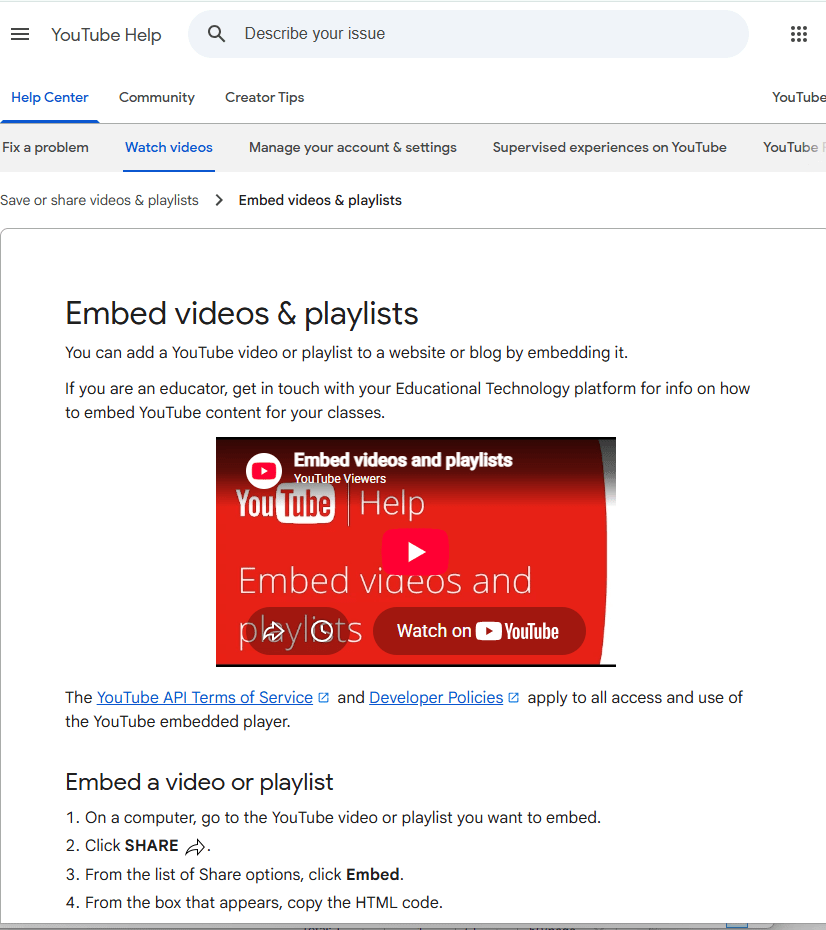
For example, YouTube age-restricted videos cannot be watched by signed-out viewers or accounts identified as under 18. They also generally cannot play through embedded YouTube players on third-party websites. Therefore, a video that works in the YouTube app but fails inside a forum, news page, or messaging app may not indicate a problem with the viewer’s age setting. Opening the video directly on YouTube is the correct test.
Search visibility is another separate issue. Some services filter mature material from search, categories, discovery feeds, or recommendations without blocking every direct visit. Twitch, for example, uses Content Classification Labels and content-display preferences. Streams carrying certain labels can be filtered or blurred according to the viewer’s age, login state, and selected preferences. A missing search result therefore does not always mean the stream has been removed.
Use the direct stream URL whenever possible. If the direct link works but search does not, examine discovery filters and content-display preferences. If the direct link also fails, continue with the account and profile checks.
Check Whether the Restriction Follows the Account or Profile
Keep the device, app, browser, and network unchanged, then sign in with the two accounts being compared.
If the result changes immediately after switching accounts, focus on account-level conditions. Check the following:
Recorded age and eligibility
An account that is signed out, recorded as under the required age, or unable to satisfy an age check may be denied access. Depending on the platform and region, an additional verification process may sometimes be required.
Do not create a false birth date or use another person’s identification to bypass a restriction. If the account contains an incorrect date of birth, use the platform’s official account-correction or verification process.
Supervision status
A family-managed or supervised account may remain restricted even when the person using it believes they are old enough for the content. The restriction may be controlled by a parent, family manager, school, or organization rather than by the viewer.
On YouTube, supervised experiences and Restricted Mode can affect what a user finds and watches. These controls are separate from the ordinary age gate applied to formally age-restricted videos. Turning off one filter does not guarantee that the account becomes eligible for all mature content.
Profile maturity level
Subscription platforms often apply restrictions to individual profiles rather than the entire account. Netflix, for example, allows maturity limits and specific title blocks to be assigned per profile. Two people using the same subscription can therefore see different libraries.
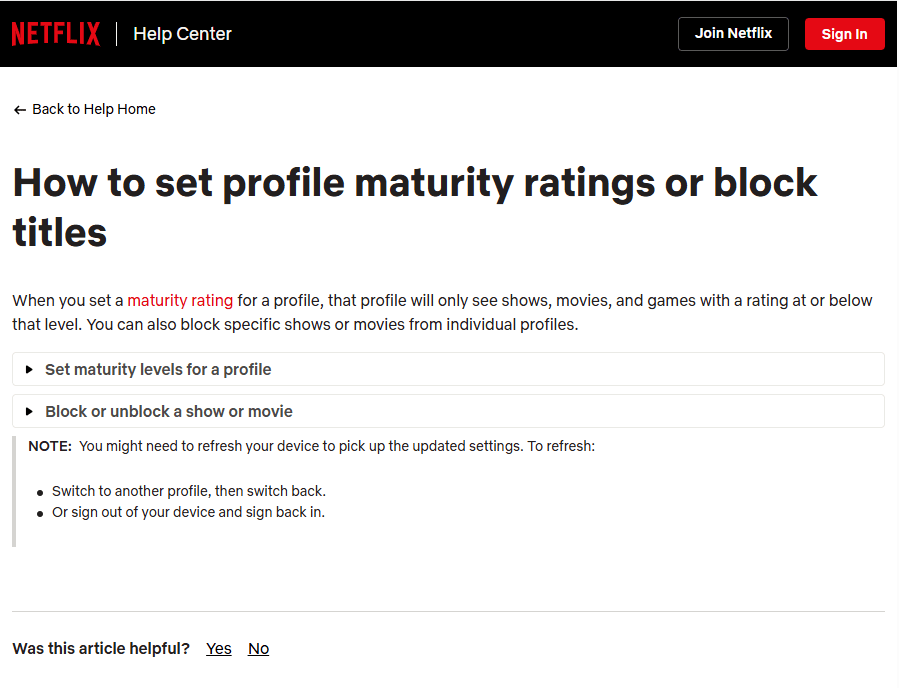
When the content appears under one profile but not another, compare the profiles’ maturity levels, Kids status, blocked-title lists, and profile locks. Do not assume that changing the master account’s birth date will affect a profile-level restriction.
Viewer content preferences
Some platforms allow adult users to hide, blur, or exclude labeled content from discovery. On Twitch, these preferences can affect whether labeled streams appear in browsing and search. Compare the content-display settings of the two accounts instead of looking only for a general “mature content” switch.
After making an authorized change, sign out and back in or restart the app. Some services may not display updated profile conditions until the session refreshes.
Check the Device, App, Player, and Network Separately
When the same account works on one device but not another, the account is less likely to be the primary cause. Compare the viewing environment instead.
Start with the application. Confirm that both devices are using the official app or official website and that the app is current. A smart-TV application, mobile app, browser, and embedded web player may not support the same authentication flow or age-verification prompt.
Next, check whether the failing device is signed into the expected profile. Shared TVs and tablets frequently remain on a child profile, guest profile, secondary Google account, or restricted Apple account even when the user assumes the main account is active.
Then review operating-system controls. Apple’s Screen Time can restrict apps, web content, media, and account changes through Content & Privacy Restrictions. Google Family Link can manage supervised accounts and apply controls across services such as YouTube, Chrome, Search, and Google Play. Third-party parental-control or security software may add another filtering layer.

Do not disable these controls unless you own the device or have permission from the family or organization managing it. If the controls are protected by a parent, school, employer, or administrator, the correct action is to contact that person rather than attempt to bypass them.
The network should be tested last because it is easy to isolate. Keep the same account and device, then compare trusted home Wi-Fi with mobile data or another authorized connection.
If the content works on mobile data but not on Wi-Fi, possible causes include:
- Router-level parental controls.
- DNS-based content filtering.
- School or workplace security policies.
- ISP family-safety services.
- Regional or location-based availability rules.
A network filter may affect all connected devices, although cached sessions and different DNS configurations can occasionally make the results look inconsistent. Changing an account’s maturity settings will not solve a restriction imposed by a managed network.
Do not use a VPN merely to defeat an age gate, regional law, workplace policy, or parental control. Apart from violating platform rules, changing location can introduce licensing differences and make the diagnosis less reliable.
Use a Controlled Test to Identify the Responsible Layer
A simple comparison table can prevent unnecessary settings changes.
| Test result | Most likely area to inspect |
|---|---|
| Different accounts produce different results on the same device | Account age, supervision, profile maturity level or content preferences |
| The same account differs between two devices | Active profile, operating-system controls, app version or player type |
| The official app works but an embedded player fails | Embedded playback or authentication limitation |
| A direct link works but the stream is missing from search | Discovery filters, labeled-content preferences or recommendation rules |
| Mobile data works but Wi-Fi does not | Router, DNS, administrator or ISP filtering |
| Every account and device fails | Stream removal, regional availability, platform enforcement or broadcaster restrictions |
Run the tests without changing several variables at once. If you switch the account, device, network, and browser simultaneously, you will not know which change affected the result.
Also verify that both people are testing the exact same stream. Live content may end, become a replay, receive a new content label, or be removed while the comparison is taking place. Regional versions of a service may display similar titles with different rights or ratings.
Once the responsible layer is identified, use the appropriate official setting:
- Correct account information through the platform’s verification process.
- Ask the family manager to review supervised-account controls.
- Adjust an authorized profile maturity level.
- Review content-display preferences.
- Open the stream through the official platform rather than an unsupported embed.
- Update the app and confirm the active profile.
- Ask the network administrator about enforced filtering.
If all controlled tests produce the same failure, capture the exact warning message, device model, operating-system version, app version, account type, network used, and stream URL. Send those details to the platform’s official support channel. That evidence is more useful than reporting only that the stream “looks different.”